Git Basics
Git
Git is a widely used version control system for tracking and managing code changes. It allows developers to monitor changes, compare versions, and revert to previous states.
- Enables tracking changes through incremental commits
- Widely adopted for team collaboration and updates
- Integrates with popular hosting platforms
Repositories
Every repository is its own self-contained, independent store to have source-controlled versioning.
- You can use public repositories such as Github, Bitbucket, etc
- You can have your own private repositories within your local network or
- You can hav e private repositories which you can access over a vpn
Local vs Remote Repositories
Git uses two types of repositories to manage code:
-
Local repository
- This exists on your own system
- Where you run Git commands, make changes, and track history
- Your personal working copy of the project
-
Remote repository
- Stored somewhere else, usually on a server
- Used to share code with others
- Act as a common place for collaboration
Even though a remote repository may feel like a central server, Git is still a distributed system.
- Remote repo contains full code and history
- Cloning downloads the entire repository
- No file locking is required
When you clone a remote repository, you get the complete project, including its full history. This means you can work independently without depending on the server.
After cloning or creating a remote repository, both repositories become separate.
- Changes are not automatically synced
- You must push or pull changes manually
This keeps local and remote repositories independent while still allowing controlled sharing of updates.
Stages and States of Git
Git manages files through three stages that determine where your changes are at any time.
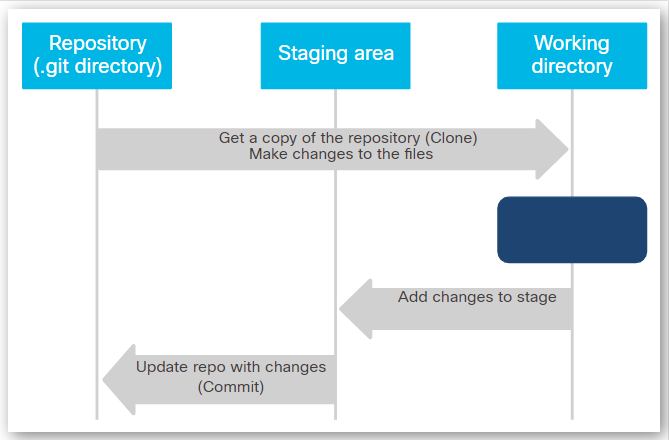
The repository (.git directory) is the core of Git. It is a hidden folder created when you initialize a repo.
- Stores all project data, including files, commits, and history.
- Since Git is distributed, every user has a full copy of this repository.
The working directory is the visible folder on your system. This is where you open and edit files.
- Changes made here are not yet tracked by Git until you add them.
- Untracked changes may be lost, but the repository stays safe.
The staging area is where you prepare changes before saving them. You can choose specific files to include instead of committing everything. It is not a separate space, but an index file inside the .git directory.
These stages map directly to three file states.
| State | Description |
|---|---|
| Committed | File is saved in the repository |
| Modified | File has changes not yet staged |
| Staged | File is ready to be committed |
This flow lets you control changes step by step, from editing files to saving them permanently in the repository.
Initialize a Git Repository
To start using Git, initialize a repository in the folder you want to track.
git init
This creates a hidden .git directory in the project folder.
$ ls -la /your-project-directory/.git

total 968
drwxrwxrwx 1 johnsmith johnsmith    512 Mar 28 23:27 .
drwxrwxrwx 1 johnsmith johnsmith    512 Jan 22 00:41 ..
-rwxrwxrwx 1 johnsmith johnsmith     88 Mar 29 00:09 FETCH_HEAD
-rwxrwxrwx 1 johnsmith johnsmith     23 Mar 22  2019 HEAD
-rwxrwxrwx 1 johnsmith johnsmith     41 Mar 28 23:27 ORIG_HEAD
drwxrwxrwx 1 johnsmith johnsmith    512 Dec 13  2018 branches
-rwxrwxrwx 1 johnsmith johnsmith   2853 Feb 14 16:42 config
-rwxrwxrwx 1 johnsmith johnsmith     73 Jun 18  2018 description
drwxrwxrwx 1 johnsmith johnsmith    512 Mar 22  2019 filter-repo
drwxrwxrwx 1 johnsmith johnsmith    512 Mar 28 23:28 gk
drwxrwxrwx 1 johnsmith johnsmith    512 Mar 22  2019 hooks
-rwxrwxrwx 1 johnsmith johnsmith 962757 Mar 28 23:26 index
drwxrwxrwx 1 johnsmith johnsmith    512 Oct 27 08:35 info
drwxrwxrwx 1 johnsmith johnsmith    512 Mar 22  2019 lfs
drwxrwxrwx 1 johnsmith johnsmith    512 Oct 27 08:34 logs
drwxrwxrwx 1 johnsmith johnsmith    512 Jan  6 21:39 modules
drwxrwxrwx 1 johnsmith johnsmith    512 Mar 29 00:09 objects
-rwxrwxrwx 1 johnsmith johnsmith    105 Mar 22  2019 packed-refs
drwxrwxrwx 1 johnsmith johnsmith    512 Dec 13  2018 refs
The .git directory stores:
- Compressed files
- Commit history
- Staging area
Git also creates the master branch when initializing.
To initialize a repository in a specific folder:
git init <project-directory>
The <project-directory> can be a relative or absolute path, for example:
git init /mnt/c/Users/johnsmith/Git/project-repo
Initializing a repo does not automatically track files. You need to add files explicitly to start tracking them.
Uninitialize a Git Repository
To remove a local Git repository:
cd </folder/repo-name>
rm -rf .git
This deletes the repository but leaves the project files intact.
User Configuration
After initializing your git repo, you can set your Git credentials next.
git config --global user.name "johnsmith"
git config --global user.email johnsmith@gmail.com
This will set the name and email fields of Git's configuration. Commits made in this repository moving forward will be attributed to the name and email you set.
Branches
Branches in Git let developers make changes safely without affecting the main codebase. Each repository has a default branch, usually main or master. Changes in a branch don’t impact the main branch until merged.
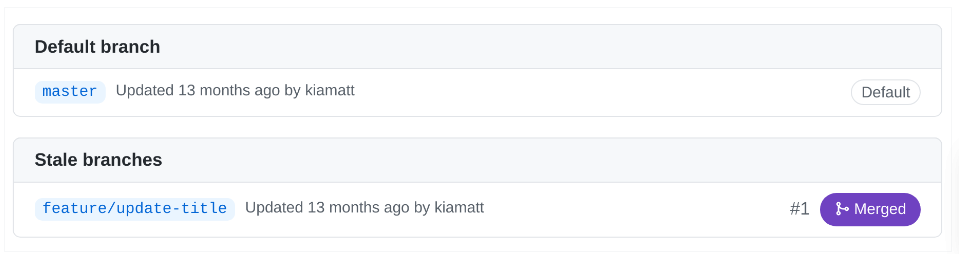
The image shows the branch feature/update-title marked as Merged, meaning its updates are now part of the default branch.
For more information, pleasee see Branching.
Commits
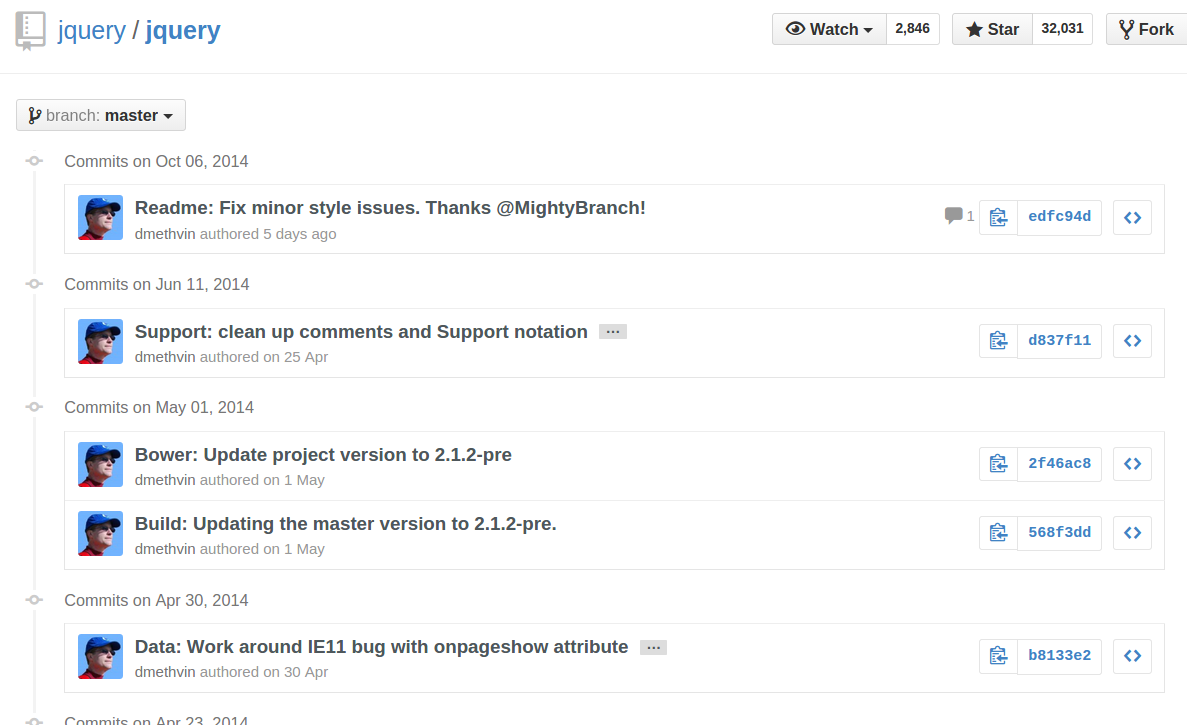
Commits are snapshots of the codebase at different points in time. They allow you to revert the codebase to any previous state, which is especially useful for fixing bugs introduced accidentally.
Cloning a Git Repository
Cloning makes a full copy of a Git repository on your local machine. This lets you work on the code without affecting the original repository.
Git supports four main ways to access repositories:
-
Local – cloning from another folder on your machine:
git clone /path/to/local/repository -
SSH (Secure Shell) – cloning using SSH keys from a remote server:
git clone git@github.com:username/example-repo.git -
Git protocol – cloning using the Git-only protocol:
git clone git://github.com/username/example-repo.git -
HTTP/HTTPS – cloning over HTTPS from GitHub or other hosting service:
git clone https://github.com/username/example-repo.git
You can specify a target directory for all four clone methods by adding the path at the end of the command.
git clone /path/to/local/repository /path/to/target-directory

git clone git@github.com:username/example-repo.git /path/to/target-directory

git clone git://github.com/username/example-repo.git /path/to/target-directory

git clone https://github.com/username/example-repo.git /path/to/target-directory
The target directory is optional. If its not provided, Git copies the repository to your current folder.
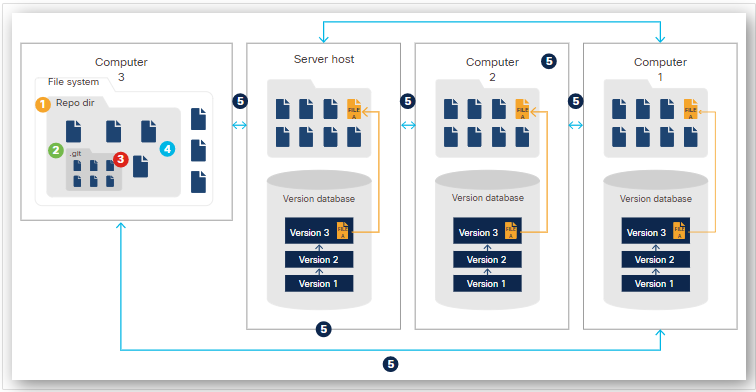
When you run git clone, Git:
- Creates a working directory with the repository name or the name you specify.
- Creates a
.gitdirectory inside that folder. - Copies all repository metadata into
.git. - Creates a working copy of the latest project files.
- Duplicates the branch structure and sets up tracking for local and remote branches, including checking out the active branch.
Cloning gives you a complete, independent copy of the repository to work with safely.
Pulling from a Remote Repository
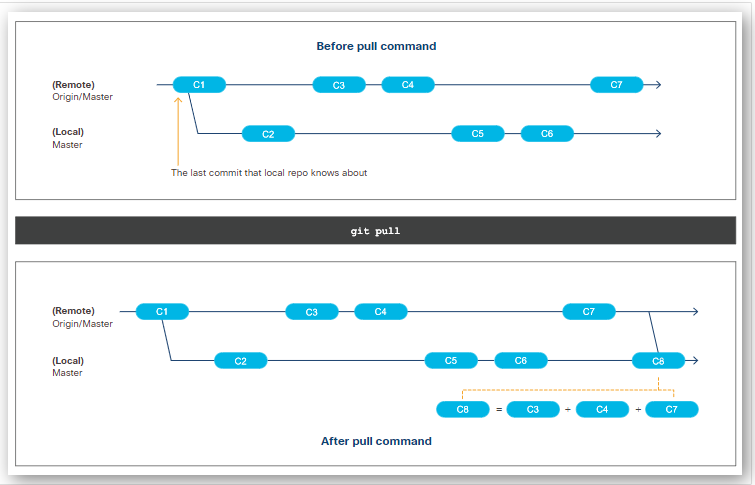
Local copies of a Git repository do not update automatically when others make changes. To get the latest updates, use the command below. It fetches changes from a remote branch and merges them into your local branch.
git pull
Note: git pull updates an existing local repository with changes from the remote, while git clone creates a new local copy of a remote repository.
What happens when you run git pull:
- The local repository (
.gitdirectory) is updated with the latest commits and history from the remote (likegit fetch). - Your working directory and branch are updated with the new content (like
git merge). - A commit is created on your local branch for the merged changes. Conflicts, if any, need to be resolved.
- The working directory reflects the latest updates.
To update from the parent branch:
git pull
or
git pull origin
To update from a specific branch:
git pull origin <branch>
This ensures your local copy stays in sync with the remote repository.
Checking the Changes
The git status command shows changes since the last commit. If no changes have been made, Git will indicate that the working directory matches the last commit.
git status
Files in Git fall into two main types:
| State | Description |
|---|---|
| Tracked | Files in the last commit that are unmodified, modified, or staged for the next commit |
| Untracked | Files not in the last commit and not yet tracked by Git |
After a file is tracked, it can be:
| State | Description |
|---|---|
| Unmodified | No edits since the last commit |
| Modified | Edited since the last commit but not staged |
| Staged | Edited and ready for the next commit |
Any new or ignored files in the directory that haven't been included in a previous commit are untracked and need to be added before they can be committed.
In repositories that are newly cloned with no changes, all files are tracked and unmodified.
Staging and Commiting
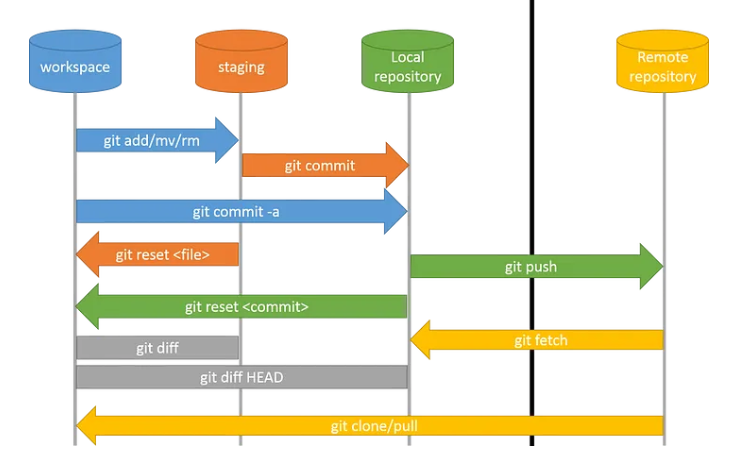
Staging allows you to prepare changes for the next commit. You can stage specific files, directories, or all changes at once.
Commiting saves changes to your local repository. A commit captures the state of your project at a specific point in time.
git add
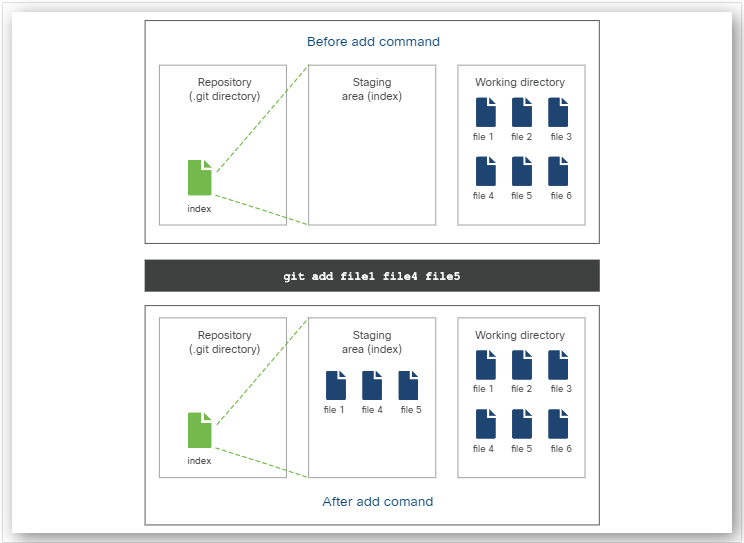
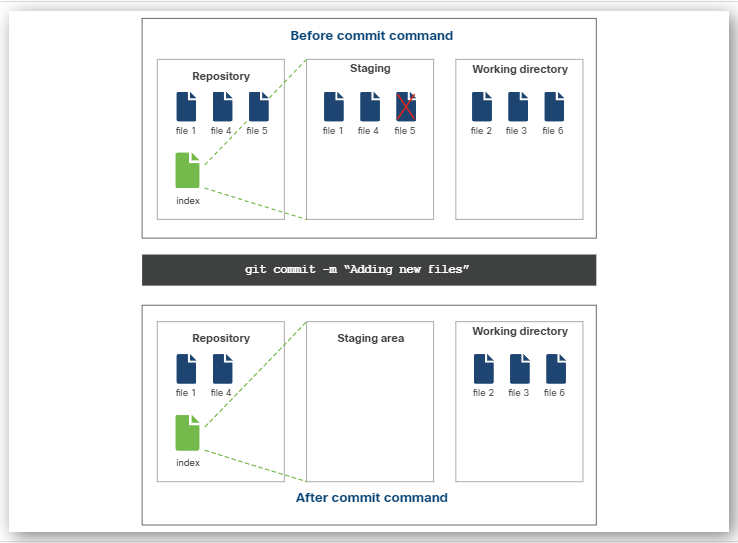
The git add command moves a file to the staging area and prepares it for the next commit. Files in the staging area will be included in the next commit, meaning Git will start tracking changes in that file.
git add about.html
Before committing, make sure to set up your user information first so Git can attribute the changes to you.
Other common commands:
-
Stage changes for all files.
git add . -
Stage changes for a specific file or directory.
git add /directory/files -
Stage changes for a multiple files or directories
git add /directory/files /directory2/file2 /directory3/directoryA
git commit
The git commit command saves your changes to the local repository. It creates a snapshot of the current state of your files, which allows you to track changes over time.
When you run the command below, Git opens the vi editor so you can add a commit message. After typing the commit message, save and exit with :wq!:
git commit
To add the commit message directly from the command line, use the -m option:
git commit -m "Add an about file"
Once committed, your modifications are recorded in the repository's history.
Other common commands:
-
Changing the commit messages:
git commit --amend -
Amended message can also be provided in the command:
git commit --amend -m "Updated commit message"
git push
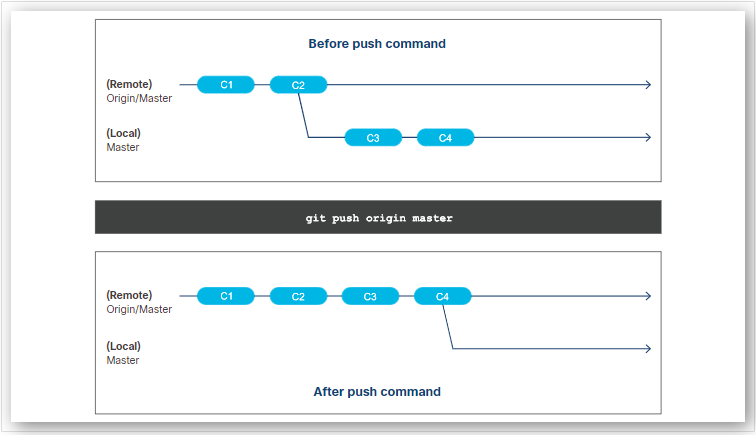
This command sends your local changes to a remote repository. You specify the remote and branch to indicate where the changes should go.
git push
To push changes to a specific branch on a remote:
git push origin <branch-name>
For example, to push your local master branch to the remote master branch:
git push origin master
Sample output:
Counting objects: 3, done.
Delta compression using up to 4 threads.
Compressing objects: 100% (3/3), done.
Writing objects: 100% (3/3), 450 bytes | 450.00 KiB/s, done.
Total 3 (delta 2), reused 0 (delta 0)
To https://github.com/username/repo.git
   1234567..89abcdef  master -> master
This command updates the remote branch with any commits your local branch has that the remote does not, keeping both branches in sync.